
How to Automate AP Aging Analysis in QuickBooks with AI

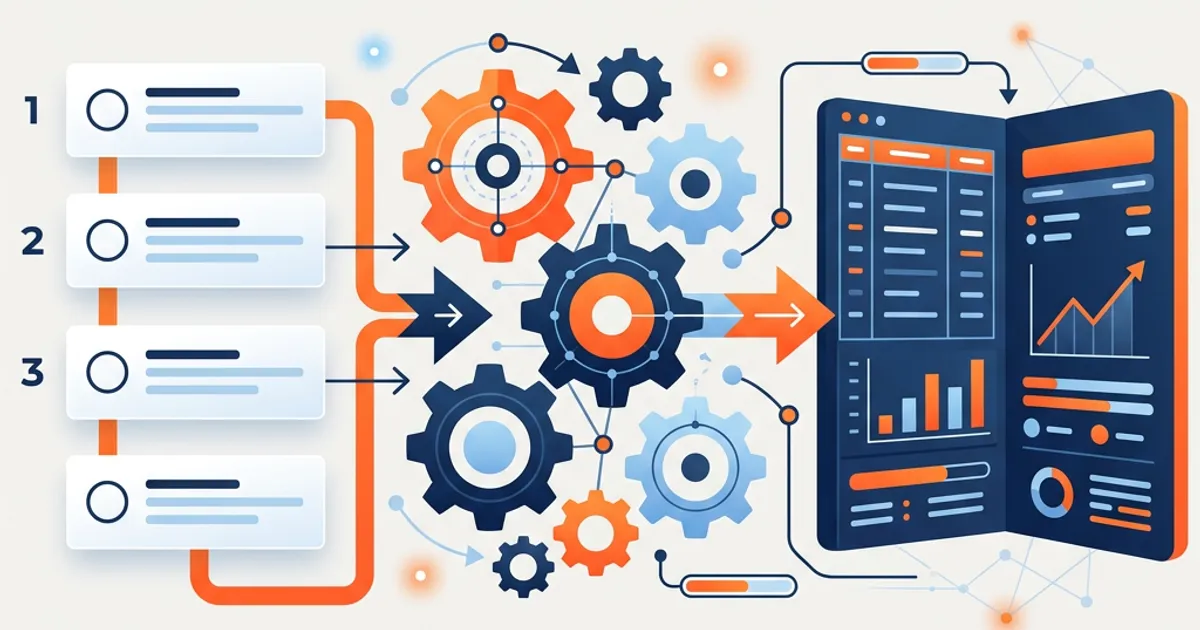
The short answer: You automate AP aging analysis in QuickBooks with AI by connecting QuickBooks, letting the AI pull open bills and aging buckets, and surfacing what matters — bills coming due, missed early-payment discounts, and vendors with balances slipping past terms. In OCTA Flow, you pick the AP Aging Analysis Skill, run it, review findings by severity, and sign off. The AI does the analysis; your team decides what to pay.
What AP aging analysis costs your firm today
The AP aging report answers "who do we owe" — but the useful question is "what do we do this week." Turning one into the other is manual: read the buckets, find the bills already past terms, catch the early-payment discount about to expire, notice a vendor whose balance is quietly climbing, and reconcile the report against what's actually approved to pay. Done for every client every cycle, it's repetitive read-and-cross-check work where the cost of a miss is real — a lapsed discount, a strained vendor relationship, or a payment run built on a stale report. It's exactly the kind of pattern-reading that should run itself and only surface the exceptions.
How to automate AP aging analysis in QuickBooks with OCTA Flow (step by step)
- Connect QuickBooks. In Settings → Integrations, authorize QuickBooks so Flow pulls open bills, vendor terms, and payment history directly — no manual export.
- Start an engagement and pick the AP Aging Analysis Skill. The Skill knows the aging buckets and the flags your firm reports on.
- Select the client and as-of date. Flow ages open payables to that date.
- Run it. The agent buckets bills by age, identifies balances past vendor terms, surfaces early-payment discounts at risk, and flags vendors whose balances are climbing — logging every step.
- Review findings by severity. A bill past terms that risks a late fee is flagged High; an expiring early-payment discount is High; an immaterial timing item is Low. You resolve, annotate, or re-run.
- Confirm payment context. Flow separates bills already approved to pay from those still pending so the analysis reflects what's actually actionable. You confirm the read.
- Sign off. Once satisfied, you approve. The engagement locks with a record of who approved what and when.
What Flow produces
The output is a decision-ready AP analysis, not a raw report: an aging summary by bucket, a list of bills past terms, an early-payment-discount opportunity view, flagged vendors trending up, and a short cash-timing read — plus a locked audit trail. It's the analysis that informs the cash flow picture, already interpreted.
Who stays in control
The AI does the analysis; your team decides what to pay and when. Every action is logged, Quality Gates check the numbers before they reach your queue, and payment decisions are surfaced for a human — Flow never initiates a payment. Flow scored 83% across 200+ accounting scenarios versus 55% for a general Opus model and 33% for ChatGPT, but the disbursement call stays with your firm.
QuickBooks specifics
Flow reads the AP aging and underlying bills directly through the QuickBooks connector, so a bill entered mid-analysis is reflected without re-pulling. If a client uses non-standard terms or custom aging buckets, set it once in the Skill and Flow applies it on every run. This is read-only analysis — Flow does not pay bills, schedule payments, or alter anything in QuickBooks; it reads the ledger and produces the read. Run the receivables mirror with AR aging analysis in QuickBooks, or see the QuickBooks integration for connector detail.
Frequently Asked Questions
Does Flow pay bills or change my QuickBooks file? No. AP aging analysis is read-only — Flow pulls the data and produces the analysis. It never pays, schedules, or edits bills.
How does it catch early-payment discounts? It reads vendor terms and flags bills where an available discount is about to expire, so a payment run can capture it before the window closes.
Can it use custom vendor terms and buckets? Yes. Set terms and aging buckets once per client in the Skill and Flow applies them on every run.
Can I run it across many clients? Yes. The AP Aging Analysis Skill is defined once and runs at a consistent standard across every client — the basis of firm-wide AP aging automation.
Run your next AP aging analysis on your own QuickBooks data — free for 30 days. → Start your trial