
How to Automate Vendor Reconciliation in QuickBooks with AI

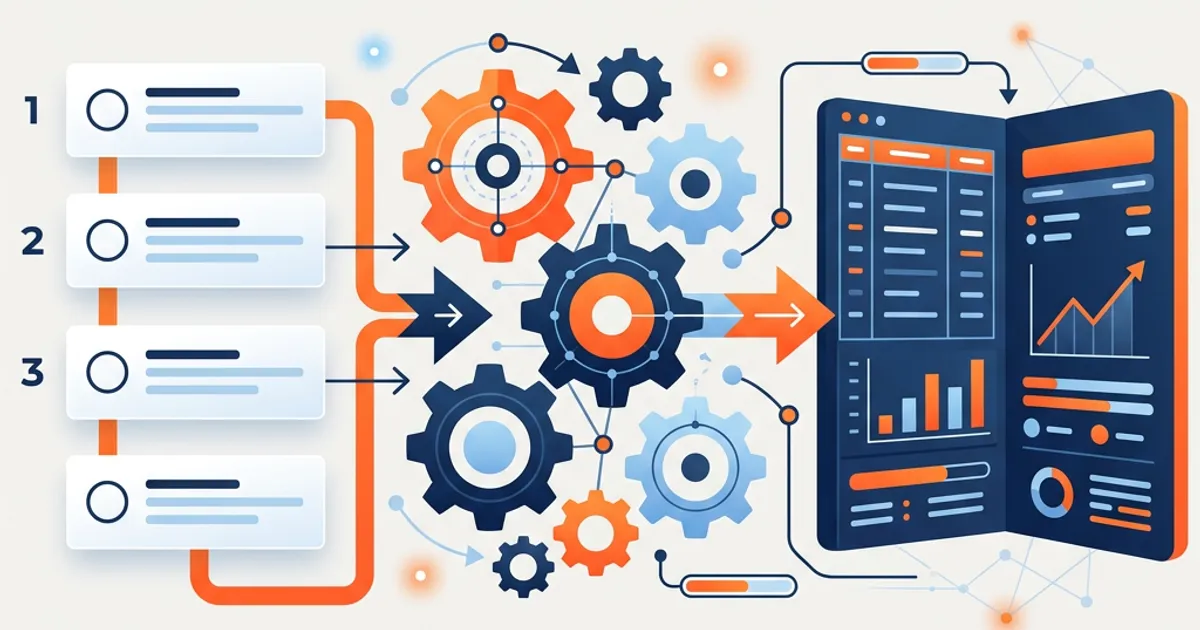
The short answer: You automate vendor reconciliation in QuickBooks with AI by connecting QuickBooks, letting the AI compare a vendor's statement against the accounts payable ledger, and surfacing missing bills, duplicate payments, and balance differences for review. In OCTA Flow, you pick the Vendor Reconciliation Skill, upload or connect the vendor statement, run it, review findings by severity, and sign off.
What vendor reconciliation costs your firm today
Vendor reconciliation is tedious and unforgiving. A vendor sends a statement; someone on your team ties every line back to the AP ledger in QuickBooks, tracks down the bills that were never entered, spots the invoice that got paid twice, and explains the balance difference the vendor is asking about. It is slow because vendor statements arrive as PDFs in inconsistent layouts, and it is risky because a missed unrecorded bill understates liabilities right before close. Multiply that across every material vendor and every client and it becomes a recurring drain on senior time — the kind of matching-and-chasing work that should run itself and only surface the genuine discrepancies.
How to automate vendor reconciliation in QuickBooks with OCTA Flow (step by step)
- Connect QuickBooks. Authorize QuickBooks so Flow pulls the AP ledger, bill and payment history, and vendor records directly.
- Pick the Vendor Reconciliation Skill and add the statement. Upload the vendor's PDF or CSV statement — the Skill already knows to read it against AP and what output to produce.
- Select the vendor and period. Flow loads the recorded bills, credits, and payments for that vendor.
- Run it. The agent matches each statement line to the ledger, flags bills on the statement that are not in QuickBooks, payments recorded twice, credits not applied, and the resulting balance difference — logging every step.
- Review findings by severity. An unrecorded bill that changes the payable balance is Critical or High; a small timing difference is Low. You resolve, override with a reason, or re-run.
- Handle proposed journal entries. Flow drafts adjusting and missing-bill entries but does not post them — you review and post them in QuickBooks yourself.
- Sign off. Once material findings clear, you approve, and the engagement locks with a full record of the run.
What Flow produces
The deliverable is a review-ready vendor reconciliation: a matched-lines summary, an exceptions tab by severity (missing bills, duplicate payments, unapplied credits), a clear reconciling bridge from the ledger balance to the vendor statement balance, proposed adjusting entries, and a locked audit trail. It is the workpaper and the vendor-response schedule in one.
Who stays in control
The AI does the work; your partner signs the name. Every action is logged, Quality Gates check the output before your review, and you cannot sign off while a Critical finding is open. You decide whether a missing bill is real or a vendor error — Flow just finds the differences and lays them out.
QuickBooks specifics
Flow reads the QuickBooks AP ledger, bill and payment history directly, and reads the vendor's statement from the PDF or CSV you provide. Because vendor statements have no standard layout, note a specific vendor's format once in the Skill (for example, "invoices in column B, credits shown as negatives") and Flow applies it on every future reconciliation for that vendor. Write-back is deliberate: Flow proposes entries for missing bills and adjustments; you post them in QuickBooks, so nothing hits AP without a human.
Frequently Asked Questions
Does the AI post the missing bills automatically? No. Flow drafts proposed entries for missing bills and adjustments; you review and post them in QuickBooks. Nothing posts without your action.
Can it read a vendor statement that comes as a PDF? Yes. Flow reads PDF and CSV statements and matches them against the QuickBooks AP ledger. Note an unusual layout once in the Skill and it reuses it for that vendor.
Will it catch a duplicate payment? Yes. Duplicate payments and unapplied credits are surfaced as findings ordered by severity so the material ones reach you first.
Is it accurate enough to rely on? In independent testing across 200+ accounting scenarios, Flow scored 83% versus 55% for a general Opus model and 33% for ChatGPT — and every reconciliation is reviewed before sign-off. See the vendor reconciliation software overview or the bank reconciliation workflow.
Run your next vendor reconciliation on your own QuickBooks data — free for 30 days. → Start your trial